Lesson 12 · 12 of 20
A toolbar with icons · tkinter
Build a ribbon-like row of buttons in tkinter: groups with LabelFrame and buttons with icons drawn in code with PhotoImage.
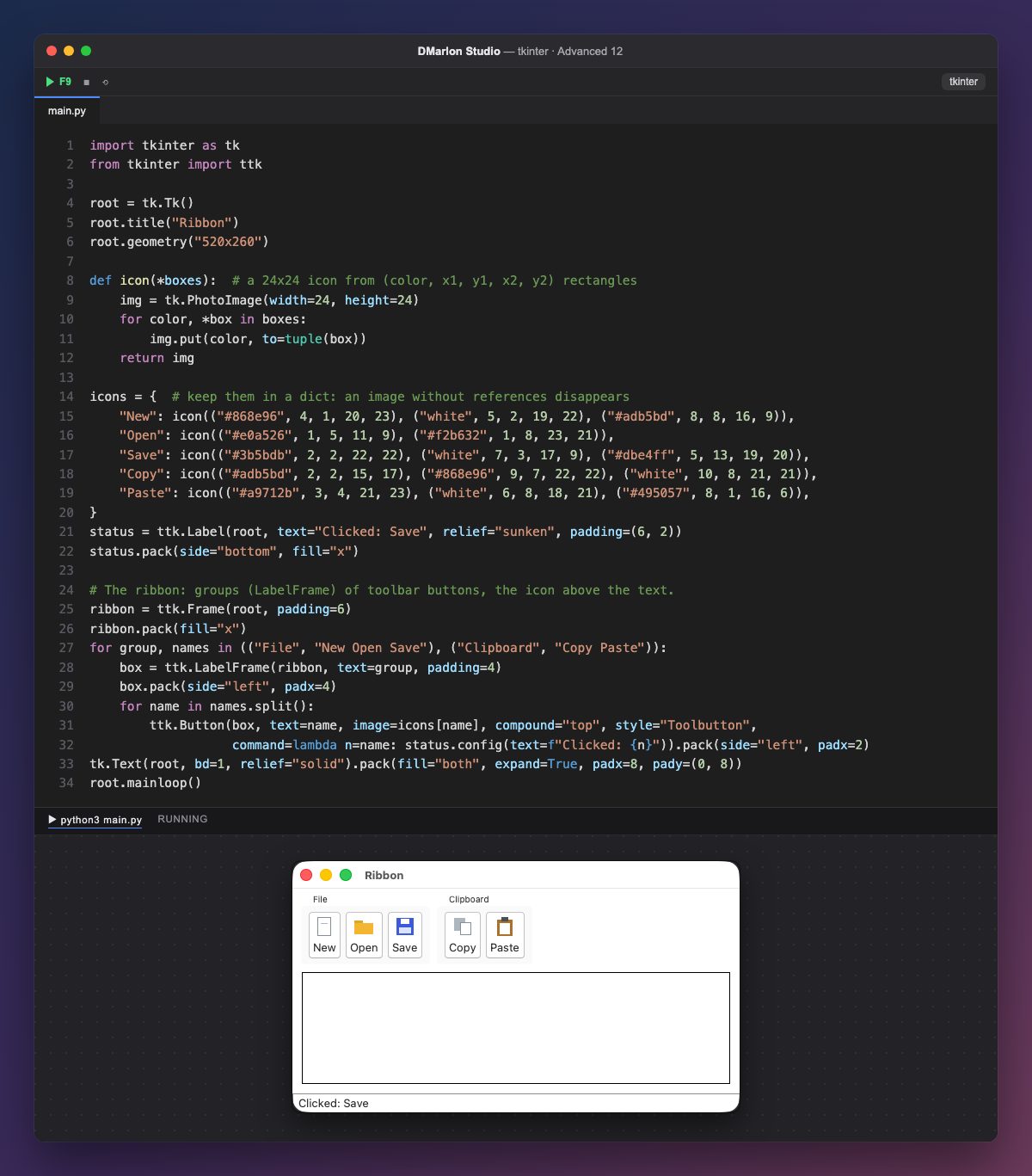
The icons come from no files: icon() creates a 24 × 24 PhotoImage and paints coloured rectangles on it with put(color, to=(x1, y1, x2, y2)). A sheet, a folder, a floppy disk, two overlapping sheets and a clipboard take two or three rectangles each.
They are kept in the icons dictionary, and that is no detail: if no variable holds a tkinter image, Python frees it and the button loses its icon.
The ribbon is a ttk.Frame at the top with a ttk.LabelFrame per group ("File" and "Clipboard"). Each button has image=, text= and compound="top", which puts the icon above the text, plus style="Toolbutton", ttk's style for toolbar buttons: more compact and, on Windows and Linux, flat until the mouse is over them.
All the buttons share one function: lambda n=name: ... stores each button's name (the n=name is needed so each button remembers its own and not the loop's last one), and the sunken label at the bottom says which one was clicked.
In DMarlon Studio the Ribbon is in the palette: tabs, groups and big buttons with symbols, defined in the inspector; the studio writes the tkinter code and each button calls a method with its path.
Code · main.py
import tkinter as tkfrom tkinter import ttkroot = tk.Tk()root.title("Ribbon")root.geometry("520x260")def icon(*boxes): # a 24x24 icon from (color, x1, y1, x2, y2) rectangles img = tk.PhotoImage(width=24, height=24) for color, *box in boxes: img.put(color, to=tuple(box)) return imgicons = { # keep them in a dict: an image without references disappears "New": icon(("#868e96", 4, 1, 20, 23), ("white", 5, 2, 19, 22), ("#adb5bd", 8, 8, 16, 9)), "Open": icon(("#e0a526", 1, 5, 11, 9), ("#f2b632", 1, 8, 23, 21)), "Save": icon(("#3b5bdb", 2, 2, 22, 22), ("white", 7, 3, 17, 9), ("#dbe4ff", 5, 13, 19, 20)), "Copy": icon(("#adb5bd", 2, 2, 15, 17), ("#868e96", 9, 7, 22, 22), ("white", 10, 8, 21, 21)), "Paste": icon(("#a9712b", 3, 4, 21, 23), ("white", 6, 8, 18, 21), ("#495057", 8, 1, 16, 6)),}status = ttk.Label(root, text="Clicked: Save", relief="sunken", padding=(6, 2))status.pack(side="bottom", fill="x")# The ribbon: groups (LabelFrame) of toolbar buttons, the icon above the text.ribbon = ttk.Frame(root, padding=6)ribbon.pack(fill="x")for group, names in (("File", "New Open Save"), ("Clipboard", "Copy Paste")): box = ttk.LabelFrame(ribbon, text=group, padding=4) box.pack(side="left", padx=4) for name in names.split(): ttk.Button(box, text=name, image=icons[name], compound="top", style="Toolbutton", command=lambda n=name: status.config(text=f"Clicked: {n}")).pack(side="left", padx=2)tk.Text(root, bd=1, relief="solid").pack(fill="both", expand=True, padx=8, pady=(0, 8))root.mainloop()Key points
put(color, to=...)is enough for simple icons.- Keep images in a variable or a dictionary.
compound="top"puts the icon above the text.lambda n=name:fixes each button's value.
Exercise
Add a "Font" group with a "Bold" button whose icon is a B made of black rectangles.