Lesson 20 · 20 of 20
Project: a product list · tkinter
Final tkinter project: a small CRUD app for products with a Treeview, a form, a menu bar and a status bar.
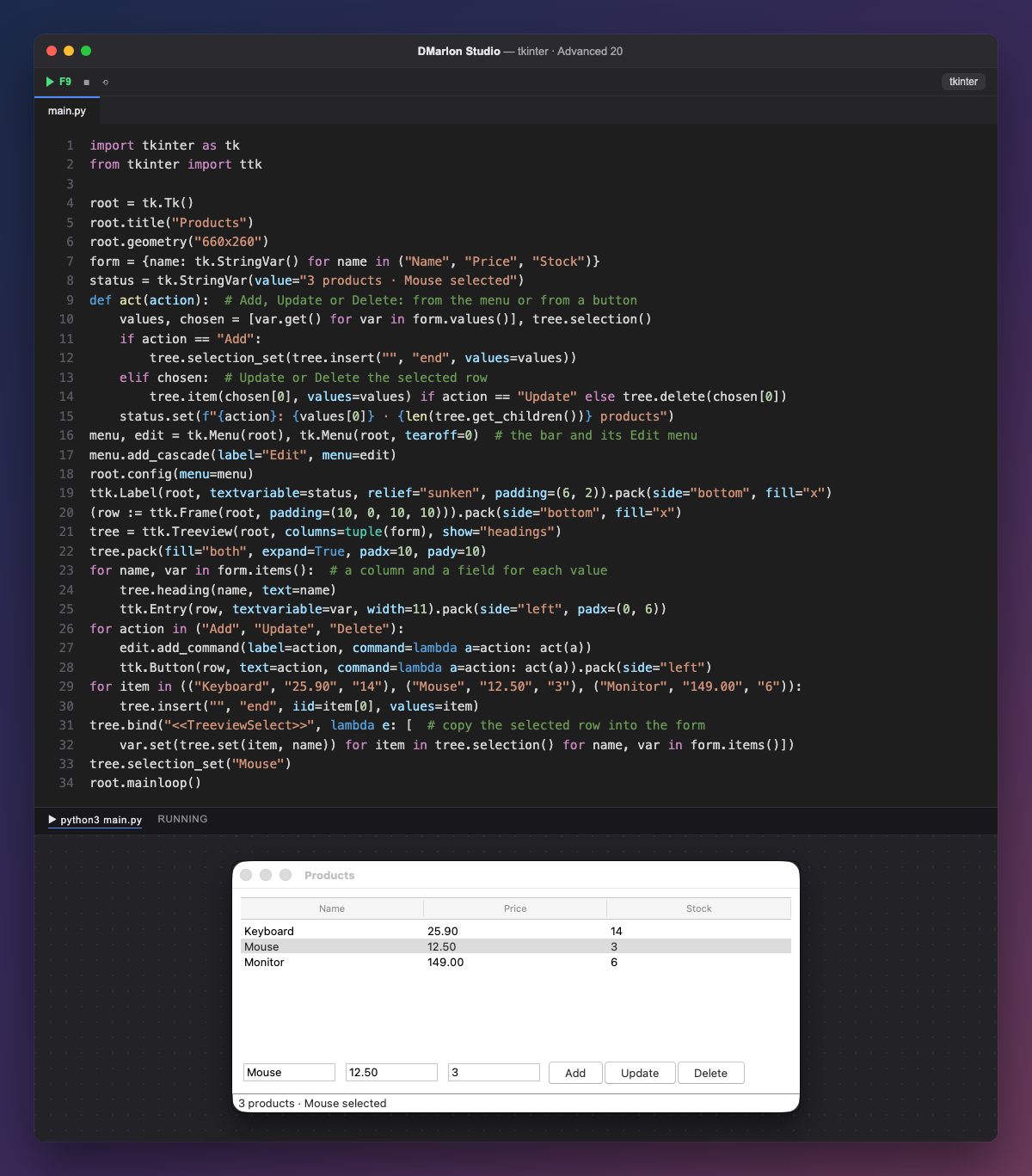
The project brings it all together: a table (ttk.Treeview) of products, a form below for name, price and stock, the Add, Update and Delete actions in the menu bar and in buttons, and a status bar that reports what happens. It is a CRUD: create, read, update and delete.
form is a dictionary with one StringVar per field, and everything comes from it: the table's columns (columns=tuple(form)), their headings and the form's Entry widgets, in the same loop. Add a field to the dictionary and it appears in all three places.
act is the single function behind the three actions, called by both the Edit menu and the buttons (lambda a=action: act(a)). Add inserts a row with the form's values and selects it; Update rewrites the selected row with item(..., values=...); Delete removes it with delete. Then the status bar says what was done and how many products there are.
When a row is selected, <<TreeviewSelect>> copies its data into the form with tree.set(row, column), which gives the value of one cell. Rows use the name as their iid, so selection_set("Mouse") leaves the mouse selected and the form filled at start. The form's frame is created and packed in a single line thanks to the := operator.
In DMarlon Studio you design this window by dragging a Data table, three text fields, three buttons, a Menu and a Status bar; the studio writes the tkinter code and you fill in the Add, Update and Delete methods.
Code · main.py
import tkinter as tkfrom tkinter import ttkroot = tk.Tk()root.title("Products")root.geometry("660x260")form = {name: tk.StringVar() for name in ("Name", "Price", "Stock")}status = tk.StringVar(value="3 products · Mouse selected")def act(action): # Add, Update or Delete: from the menu or from a button values, chosen = [var.get() for var in form.values()], tree.selection() if action == "Add": tree.selection_set(tree.insert("", "end", values=values)) elif chosen: # Update or Delete the selected row tree.item(chosen[0], values=values) if action == "Update" else tree.delete(chosen[0]) status.set(f"{action}: {values[0]} · {len(tree.get_children())} products")menu, edit = tk.Menu(root), tk.Menu(root, tearoff=0) # the bar and its Edit menumenu.add_cascade(label="Edit", menu=edit)root.config(menu=menu)ttk.Label(root, textvariable=status, relief="sunken", padding=(6, 2)).pack(side="bottom", fill="x")(row := ttk.Frame(root, padding=(10, 0, 10, 10))).pack(side="bottom", fill="x")tree = ttk.Treeview(root, columns=tuple(form), show="headings")tree.pack(fill="both", expand=True, padx=10, pady=10)for name, var in form.items(): # a column and a field for each value tree.heading(name, text=name) ttk.Entry(row, textvariable=var, width=11).pack(side="left", padx=(0, 6))for action in ("Add", "Update", "Delete"): edit.add_command(label=action, command=lambda a=action: act(a)) ttk.Button(row, text=action, command=lambda a=action: act(a)).pack(side="left")for item in (("Keyboard", "25.90", "14"), ("Mouse", "12.50", "3"), ("Monitor", "149.00", "6")): tree.insert("", "end", iid=item[0], values=item)tree.bind("<<TreeviewSelect>>", lambda e: [ # copy the selected row into the form var.set(tree.set(item, name)) for item in tree.selection() for name, var in form.items()])tree.selection_set("Mouse")root.mainloop()Key points
- A dictionary of variables builds columns, headings and fields.
- The menu and the buttons call the same function.
tree.set(row, column)reads one cell.- The status bar confirms every action.
Exercise
Before adding or updating, check that the name is not empty and the price is a number; if not, write the error in the status bar and leave the table alone.