Lesson 7 · 7 of 20
Tabs with Notebook · tkinter
Organise a tkinter window into tabs with ttk.Notebook: pages, a disabled tab, the starting tab and the tab-changed event.
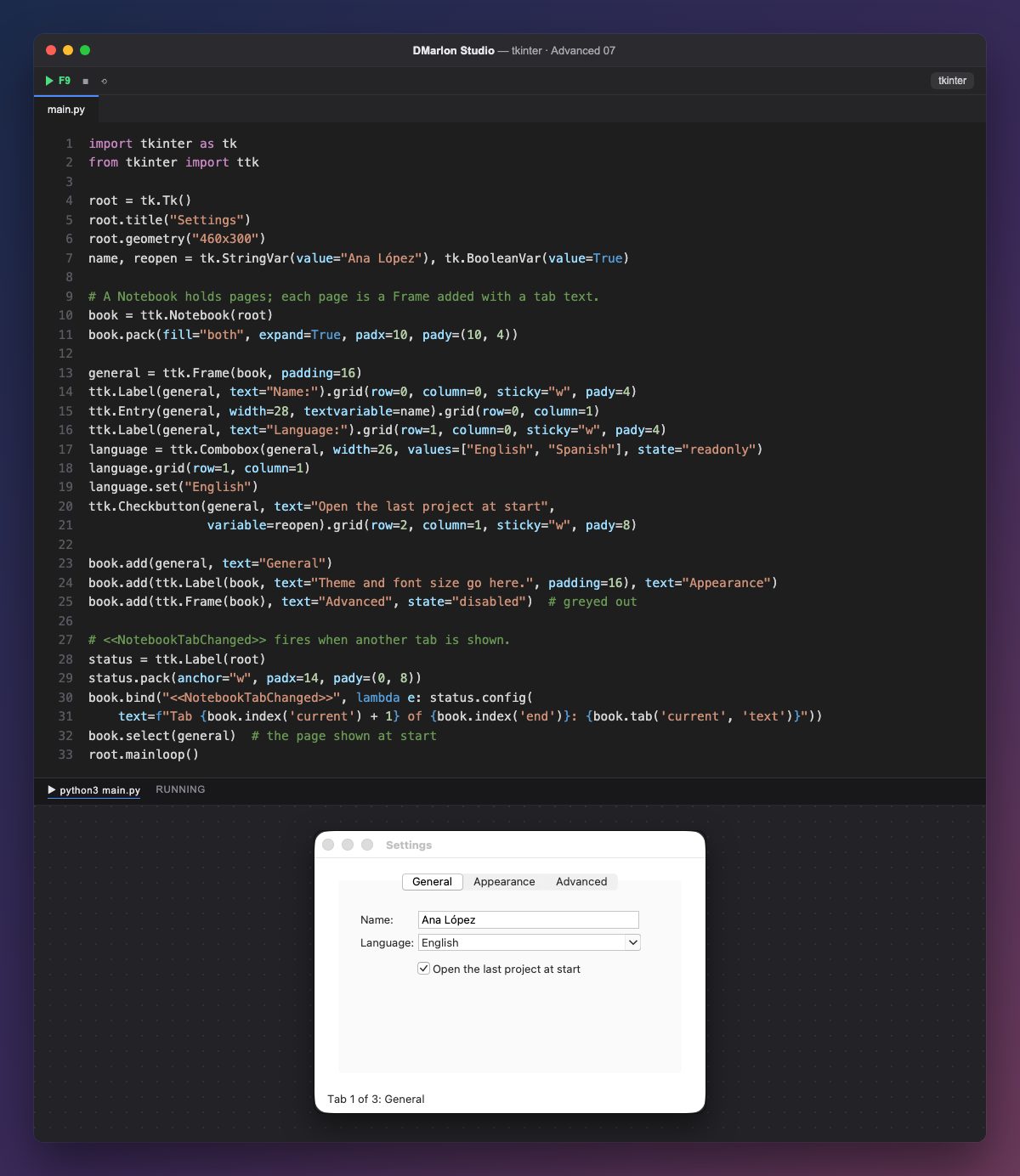
ttk.Notebook is a container with tabs that shows one page at a time. Each page is a widget (usually a ttk.Frame) created with the notebook as its parent and added with add(page, text="General").
The first page is a frame with its own grid: name, language and a checkbox, with values set from code (StringVar, set("English") and BooleanVar). The second shows that a page can be any widget, here a single label with padding.
state="disabled" leaves a greyed-out tab that cannot be opened, useful for options that don't apply yet. select(general) picks the page shown at start; it also takes its number (select(0)).
When the tab changes, the notebook fires the virtual event <<NotebookTabChanged>>. The label at the bottom uses it: index("current") is the visible tab's number, index("end") the total and tab("current", "text") its text.
In DMarlon Studio it is the Page control in the palette: add the pages in the inspector, drag widgets onto each one and the studio generates the ttk.Notebook with one frame per page.
Code · main.py
import tkinter as tkfrom tkinter import ttkroot = tk.Tk()root.title("Settings")root.geometry("460x300")name, reopen = tk.StringVar(value="Ana López"), tk.BooleanVar(value=True)# A Notebook holds pages; each page is a Frame added with a tab text.book = ttk.Notebook(root)book.pack(fill="both", expand=True, padx=10, pady=(10, 4))general = ttk.Frame(book, padding=16)ttk.Label(general, text="Name:").grid(row=0, column=0, sticky="w", pady=4)ttk.Entry(general, width=28, textvariable=name).grid(row=0, column=1)ttk.Label(general, text="Language:").grid(row=1, column=0, sticky="w", pady=4)language = ttk.Combobox(general, width=26, values=["English", "Spanish"], state="readonly")language.grid(row=1, column=1)language.set("English")ttk.Checkbutton(general, text="Open the last project at start", variable=reopen).grid(row=2, column=1, sticky="w", pady=8)book.add(general, text="General")book.add(ttk.Label(book, text="Theme and font size go here.", padding=16), text="Appearance")book.add(ttk.Frame(book), text="Advanced", state="disabled") # greyed out# <<NotebookTabChanged>> fires when another tab is shown.status = ttk.Label(root)status.pack(anchor="w", padx=14, pady=(0, 8))book.bind("<<NotebookTabChanged>>", lambda e: status.config( text=f"Tab {book.index('current') + 1} of {book.index('end')}: {book.tab('current', 'text')}"))book.select(general) # the page shown at startroot.mainloop()Key points
add(page, text=...)adds a tab.select()picks the visible tab.state="disabled"disables a tab.<<NotebookTabChanged>>reports the change.
Exercise
Replace the "Appearance" tab with a frame holding two options (Light and Dark) and make the window open on it.