Lesson 1 · 1 of 20
Your first window · tkinter
Create a desktop window with Python and tkinter: Tk(), title, size and mainloop(). The same window DMarlon Studio designs in Desktop (Python).
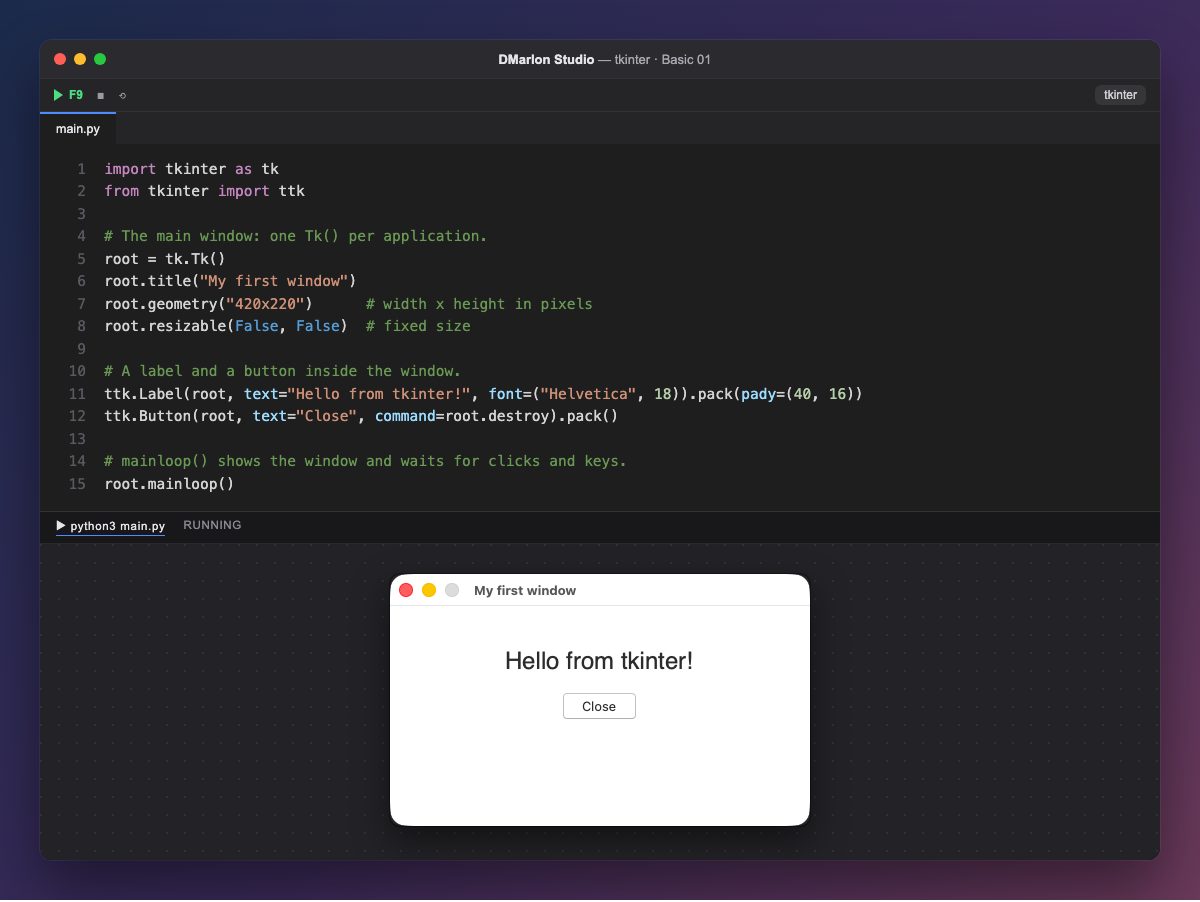
Every tkinter application starts with one main window: tk.Tk(). title() sets the text of the title bar and geometry("420x220") the width and height in pixels.
resizable(False, False) stops the window from being resized by dragging its edge. It is handy for small windows like this one, where the content has a fixed place.
Inside go the widgets. Here, a label (ttk.Label) and a button (ttk.Button). We use the ttk ones, which take the system's look: on macOS they look like macOS and on Windows like Windows. pack() places them one below the other.
mainloop() shows the window and waits: every click or key reaches the application until it is closed. The button calls root.destroy, which closes it.
In DMarlon Studio this window is the form of the Desktop (Python) target: you change its title and size in the inspector, and the studio generates this same code.
Code · main.py
import tkinter as tkfrom tkinter import ttk# The main window: one Tk() per application.root = tk.Tk()root.title("My first window")root.geometry("420x220") # width x height in pixelsroot.resizable(False, False) # fixed size# A label and a button inside the window.ttk.Label(root, text="Hello from tkinter!", font=("Helvetica", 18)).pack(pady=(40, 16))ttk.Button(root, text="Close", command=root.destroy).pack()# mainloop() shows the window and waits for clicks and keys.root.mainloop()Key points
tk.Tk()creates the main window; there is only one per application.title()andgeometry()set the title and the size.ttkwidgets take the system's look.mainloop()shows the window and handles events.
Exercise
Change the size to 500 × 300, put your name in the label and add a second button that does nothing.